
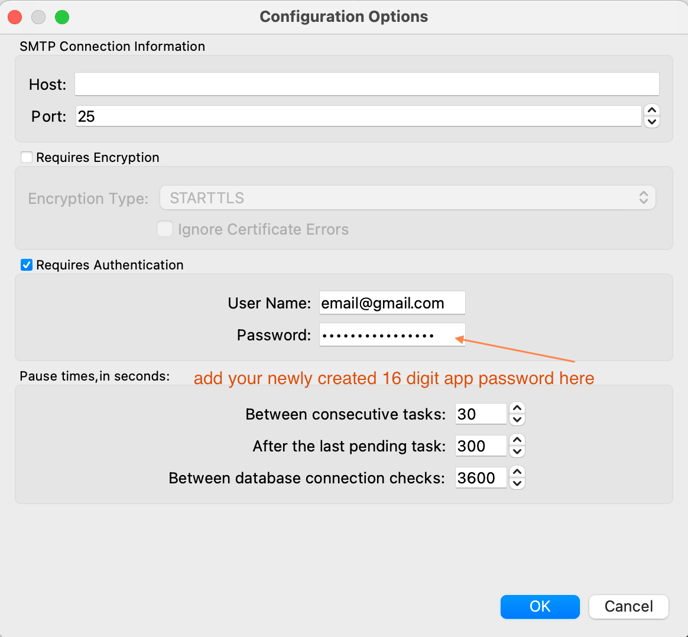
An app password is a 16-digit passcode that gives a less secure app permission to access your Google or Microsoft account. If you are using gmail or outlook for your xTconnect, you will need to create an app password for that gmail account.
Create & use app passwords - Gmail
Important: To create an app password, you need 2-Step Verification on your Google Account.
Google information on the above can be found here
.
You will need to sign into the Google Account associated with xTConnect.
We recommend creating a user in your Google account specifically for xTConnect, “internal” i.e. internal@ourdomain.com but you can use anything.
- Turn on - 2-Step Verification
- Type in App name i.e. xTuple xTConnect
- Create
- Returns a "Generated app password"
- Create
How to create an app password Microsoft
To create an app password, take the following steps. You can repeat these steps to create an app password for as many apps or devices as you need. microsoft support article
-
Go to the Advanced security options of your Microsoft account dashboard and scroll down to the App passwords section.Create password
-
Enter this app password where you would enter your normal Microsoft account password in the application.
If you’ve set up 2-Step Verification but can’t find the option to add an app password, it might be because:
- Your Google Account has 2-Step Verification set up only for security keys.
- You’re logged into a work, school, or another organization account.
- Your Google Account has Advanced Protection.